
Cortex Beta — User Guide
1. Overview
Cortex is an AI Answer Engine: give us one brand website URL and we turn your brand into the natural answer to readers' related demand across the Mlytics media network — and calculate your customer-acquisition opportunity.
- Beta scope: Brands only (Media and Content / Developers are Coming soon), invite-only, at
cortex.mlytics.com.
2. Quick Start
From sign-in to seeing "the customer-acquisition opportunity calculated for your brand" — usually within 5 minutes. If the analysis doesn't finish within a few minutes, refresh and try again (see Known Limitations).
You'll receive a beta invitation first. Have your brand's website URL ready before you start.
-
Sign in — Go to
cortex.mlytics.comand click "Sign in with Google" (use the Google account you were invited with).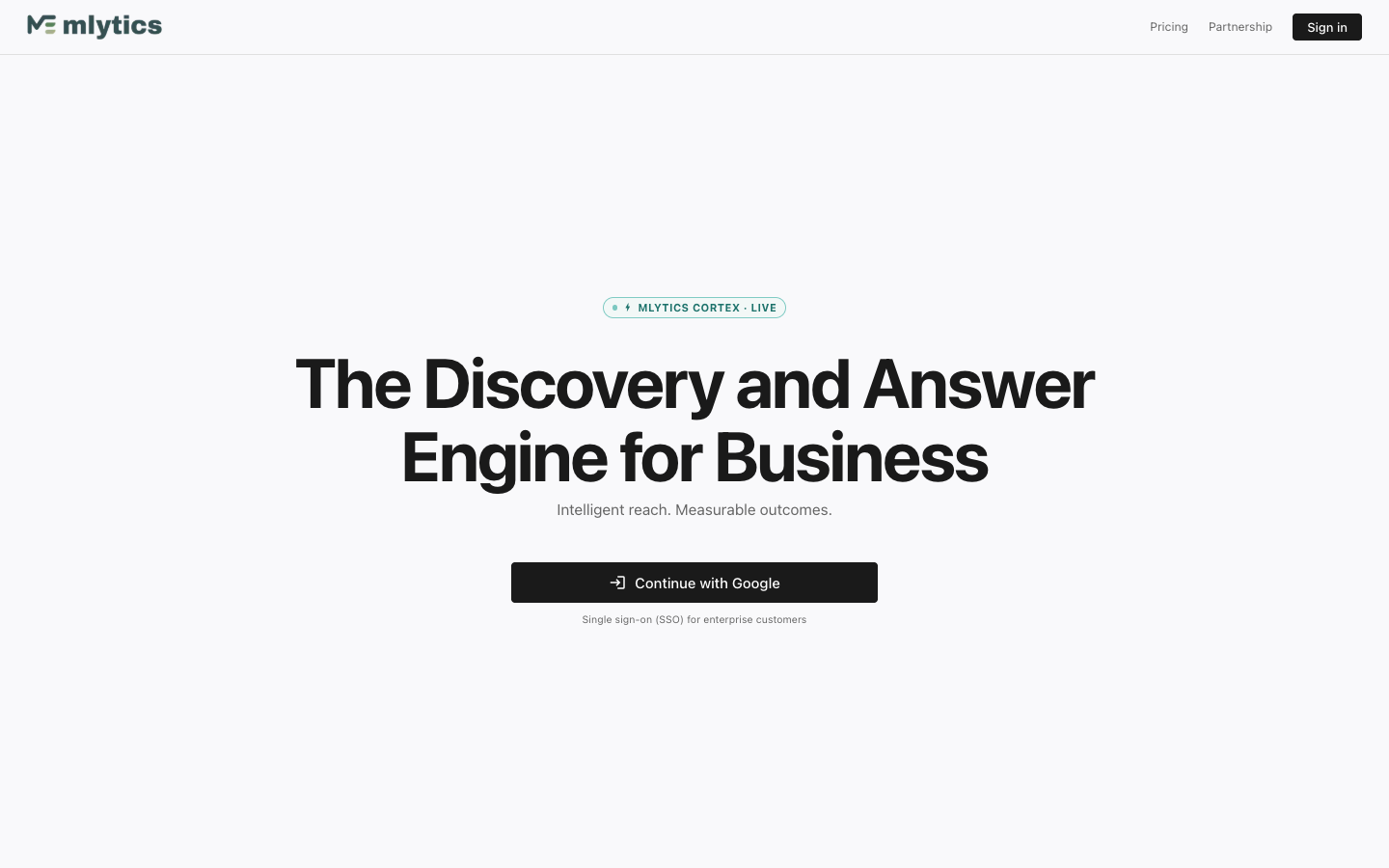
-
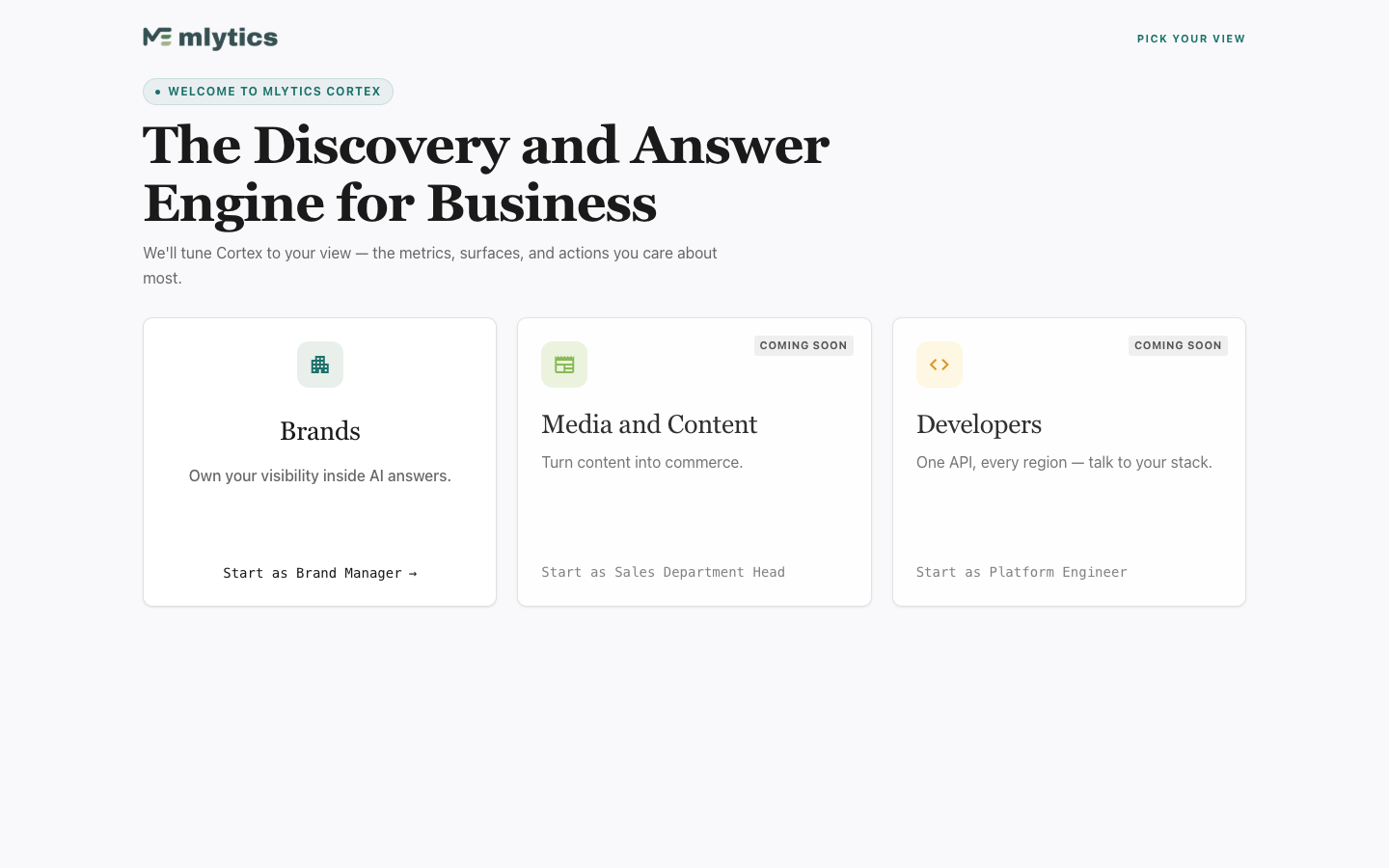
Choose your role — On the role picker, select Brands. (Media and Content and Developers show Coming soon — not open yet during beta.)
-
Enter your brand URL — In the guided wizard, enter your brand's website (e.g.
yourbrand.com) and submit to start the analysis.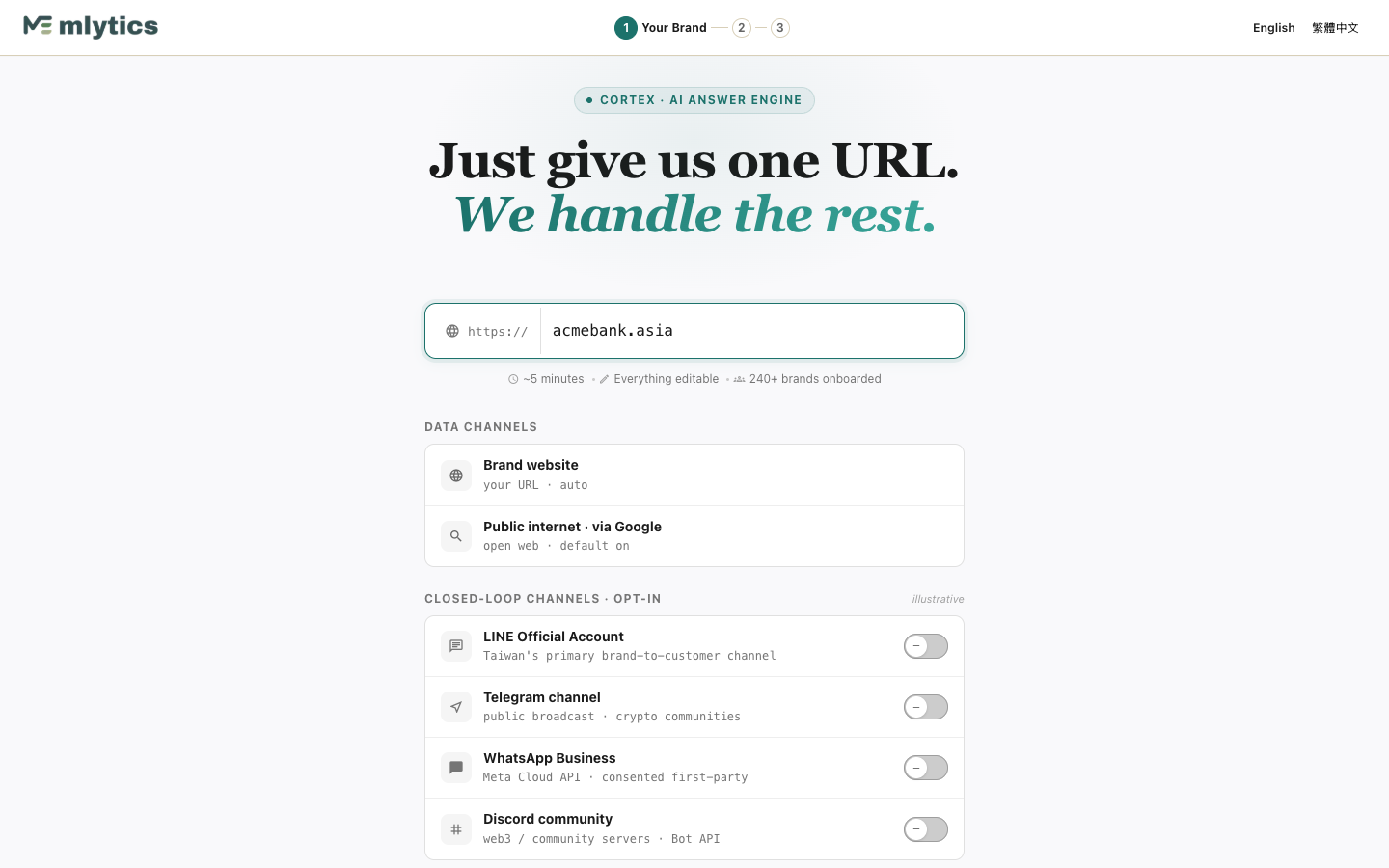
-
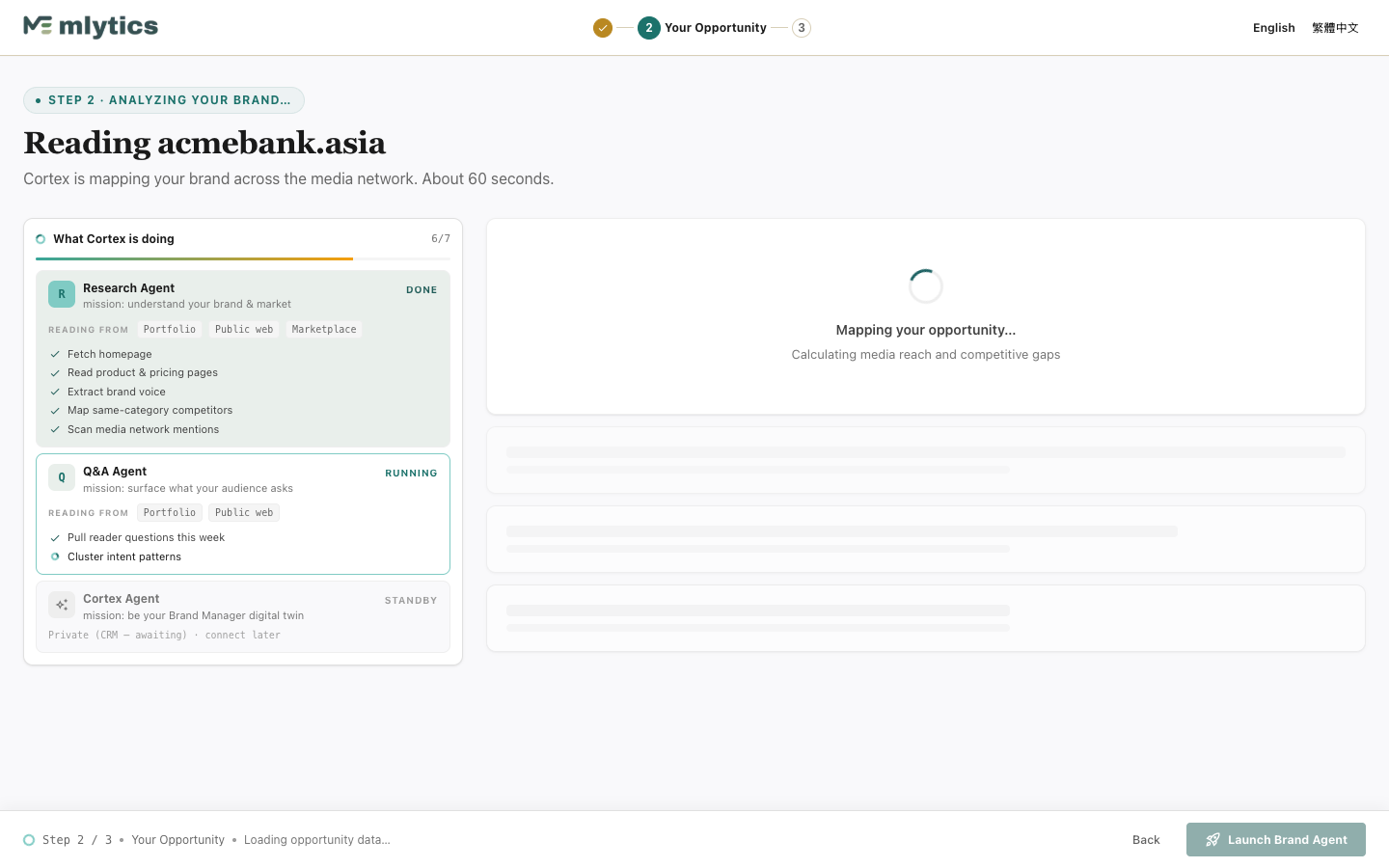
Wait for the analysis — Cortex scans your website and media-network signals; you'll see the analysis animation.
-
Launch into the dashboard — Once the "growth opportunity" summary appears, click Launch to enter the Discover dashboard.
Your first Aha — On the Discover dashboard you'll see the NT$ customer-acquisition opportunity calculated for your brand, along with the Top 10 reader questions and media distribution. Seeing these numbers means you've reached first value.
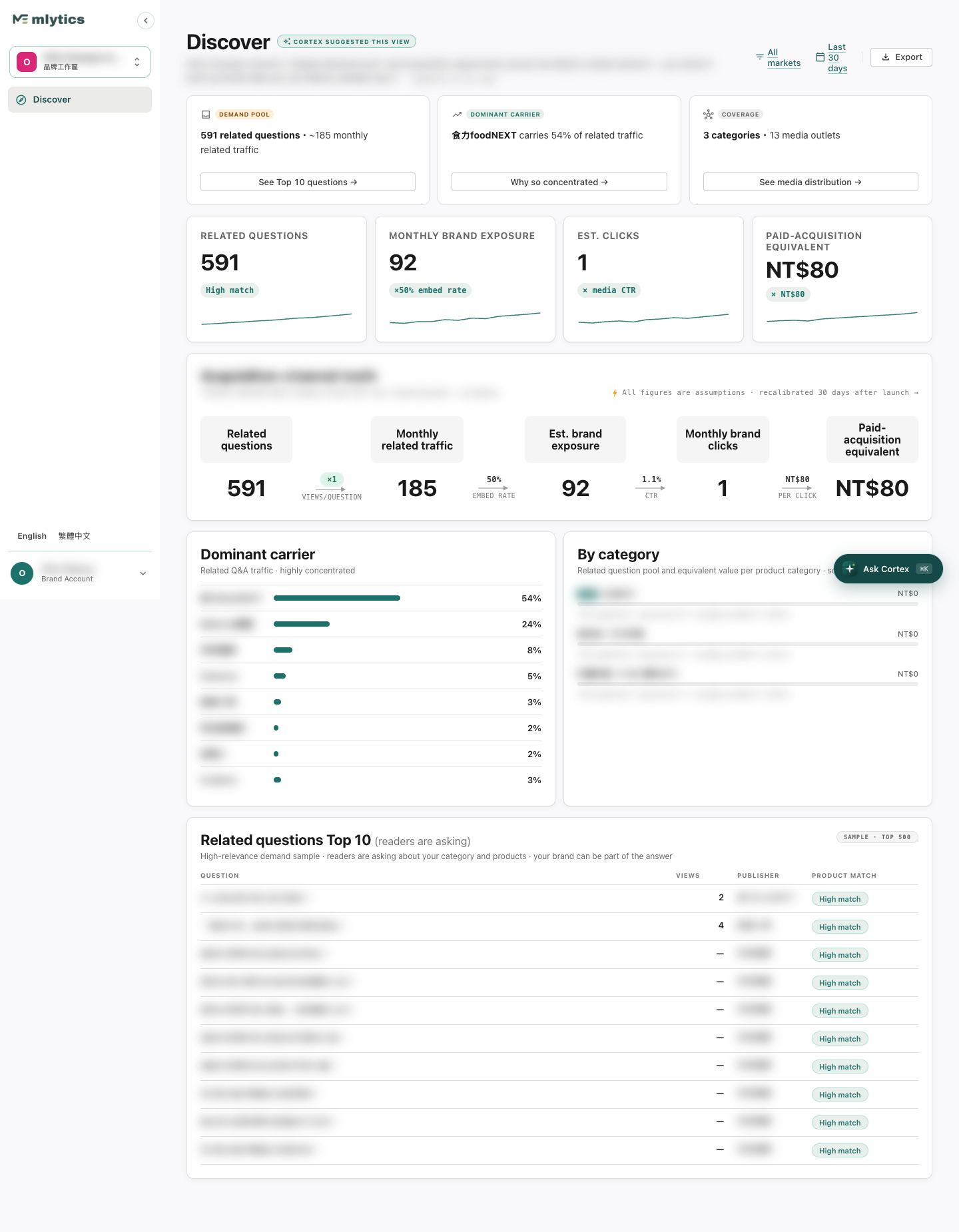
Illustrative; reader questions, publisher and product-line names are redacted.
Switch language: Toggle between 繁體中文 / English at the top right; the whole interface switches instantly. Analysis stuck? Refresh the page and try again. Just want a quick look? Open
cortex.mlytics.com/demo/onboardingto walk the onboarding flow with sample data (up to the "Your Opportunity" summary; the Discover dashboard itself requires sign-in) — no sign-in required.
3. Core Screens
Onboarding wizard — After you enter your URL, Cortex scans your brand and media-network signals with three agents:
- Research Agent — reads your site, products, brand voice, competitors, media mentions
- Q&A Agent — gathers what readers are asking this week and clusters intent
- Cortex Agent — (CRM pending) your future Brand-Manager digital twin
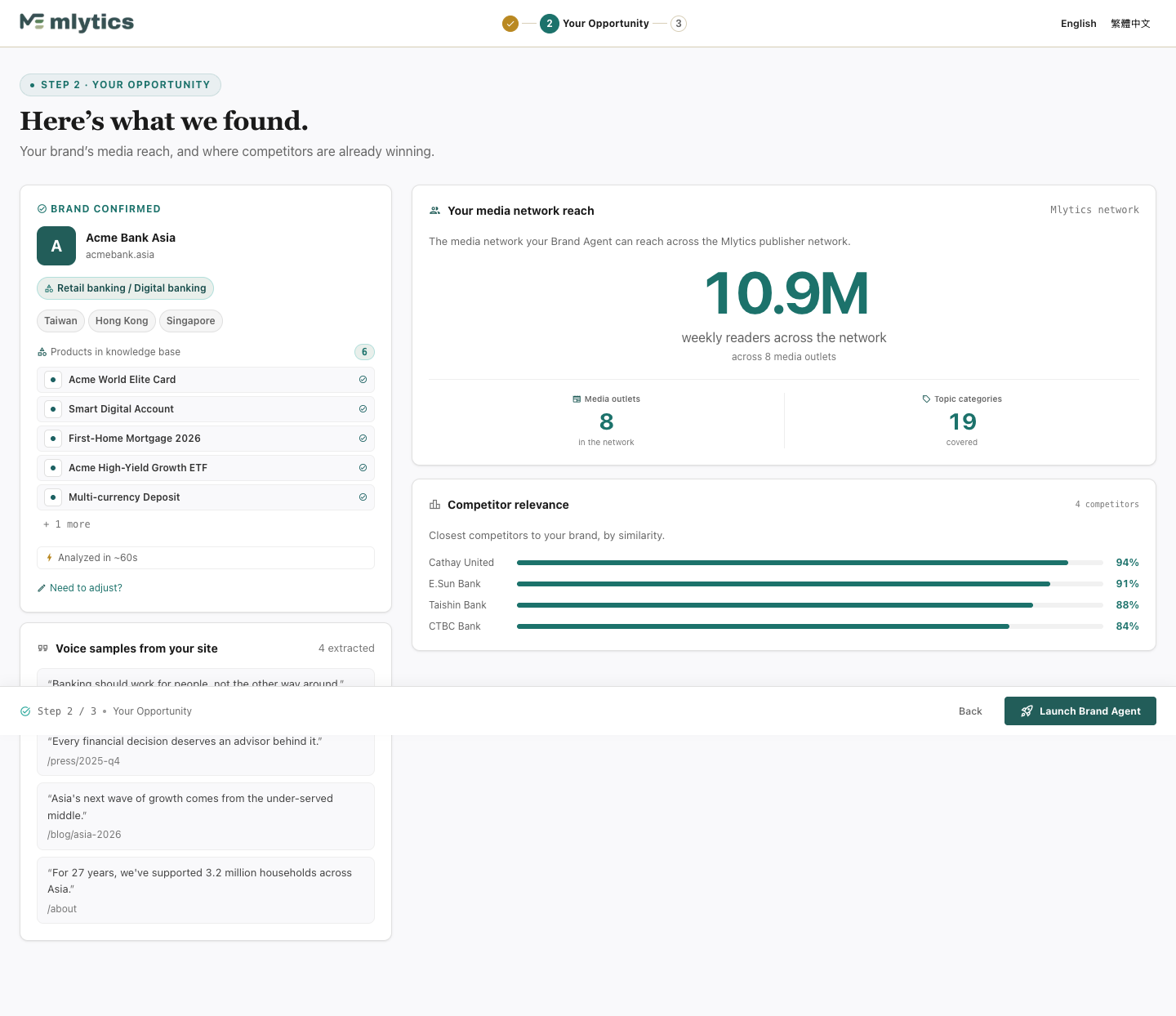
When the scan finishes, the "Your Opportunity" step shows: brand confirmation, weekly readers reachable across the media network, and competitor similarity.
Discover Dashboard (your home screen) — You land here after clicking Launch. Your day-to-day view:
- Acquisition opportunity (NT$) — a funnel estimated for your brand: related demand → monthly exposure → clicks → paid-acquisition-equivalent value
- Top 10 reader questions — the questions most relevant to your category/products that readers are asking
- Media distribution — which outlets carry that related traffic
- Toggle 繁中 / English at the top right
4. Known Limitations & Troubleshooting
Cortex is in beta — here are the known situations and how to handle them.
Analysis didn't finish / got stuck — Occasionally the analysis stalls or can't complete (usually because your website can't be read at that moment). → Refresh the page and try again. If it still doesn't complete after a few tries, wait a little before retrying, and avoid submitting the same URL repeatedly in a short window.
Dashboard looks sparse or shows "no data yet" — During beta, if your brand's related signals are still accumulating, some sections (questions, media distribution) may be limited or empty. This is normal and fills in over time.
Not yet available
- Media and Content / Developers roles show Coming soon — beta is Brands-only.
- The Google AIO / GEO opportunity card is being integrated and isn't shown yet during beta.
Language — Toggle 繁中 / English at the top right. During beta a few pages may still appear in a single language; we're filling these in.
Creating brands — Each completed onboarding creates a separate brand workspace; don't click submit more than once, to avoid creating duplicates.
Still stuck? See Feedback in the FAQ below.
5. FAQ
What do I need? A brand website URL + the Google account you were invited with.
What data does Cortex read? During analysis it reads your public website and public media signals; beta does not connect your private / CRM data (Coming soon).
How often does data update? Discover's related signals accumulate and refresh over time.
Can I manage multiple brands? Yes; each onboarding creates a separate brand workspace.
Which languages? 繁體中文 / English, toggle at the top right.
Analysis failed or stuck? Refresh and try again; see Known Limitations.
Beta pricing? See the pricing page: cortex.mlytics.com/pricing.
Feedback / reporting? Contact your Mlytics representative.
6. Appendix
Glossary
- Discover dashboard — your home screen; shows the acquisition opportunity, Top 10 questions, media distribution
- Acquisition opportunity (NT$) — an estimated funnel: related demand → exposure → clicks → paid-acquisition-equivalent value
- Brand Agent (Research / Q&A / Cortex Agent) — the agents that scan and assemble your brand signals during onboarding
- Media network — the Mlytics publisher network
Entry points
- Beta (production): cortex.mlytics.com
- No-login demo: cortex.mlytics.com/demo/onboarding
Feedback / support: contact your Mlytics representative.